Codegic Launches PKI Designer in Khatim PKI Server

Public Key Infrastructure (PKI) is at the heart of trust in digital systems — yet designing and deploying it remains one of the most misunderstood and error-prone areas of enterprise security architecture. Ask any security architect who’s dealt with broken trust chains, un-expected expirations, or wrong configurations, and you’ll hear the same thing: “We wish we had seen the full picture before going into production”
That’s exactly the problem we set out to solve with the PKI Designer/Builder module in Khatim PKI Server.
From Complexity to Clarity
The PKI Builder allows architects to define a PKI hierarchy: root and subordinate CAs, key types, lifetimes, constraints, and more. Based on your inputs, the Builder then renders a complete hierarchical model of the trust infrastructure — visually clear.
Why This Matters
Traditionally, PKI planning has lived in Visio diagrams, Excel sheets, Word documents. At times, the implementation may or may not mimic what was designed. To double check, one had to download the issued certificates, install and view in the native OS certificate viewers to ensure that the hierarchy is correct. While design work is still essential, ensuring the implementation matches the design is not straight forward and quick.
With the Khatim PKI Designer, your finalized PKI design is mimicked precisely in a functional, hierarchical model — ensuring that what gets built reflects what was envisioned. You maintain control of the architecture, but eliminate the guesswork in turning it into operational reality.
How to use the designer
Khatim PKI Server comes with 3 visuals to show CAs inside the system.
- List view
- Card view
- Tree view
List view
This is a simple view, in a table with the list of all the CAs in the system.

Information shown is:
- CA Alias
- Subject/Issuer DN
- CA Type
- Validity dates
- Created dates
While acceptable, it fails to impress because it omits critical information that should be instantly clear to the viewer.
Card view
This view includes all the features of the list view but provides more detailed information about the CA and offers a visually appealing layout.

Information shown is:
- CA Template
- Key Vault Alias
- Key Algorithm
- Provides single click option to view/download certs/crls & rekey.
- Highlights visually whether:
- CRLs are automatically generated
- CA issued certs are being synched to the external database
- The CA is configured with Certificate Provider engine for end-entity cert issuance
This looks better, but it’s still unclear to PKI Admins who the issuer is and which certificates are currently active versus those no longer in use (such as recently renewed ones).
Tree view
This is where the fun begins — the builder section. It takes things a step further by combining the flexibility of the Listing and Card views with a visual representation of the PKI hierarchy. Now, as you build your PKI, you can also see its design come to life.
Setting up two Tier PKI
Let’s deep dive and see how the PKI builder helps in visualizing your PKI. Our plan is to build a PKI like this Root CA > Issuing CAs. Let’s call the Root CA as:
- Corporate-Root-CA
- Commercial-TLS-CA
- Commercial-SMIME-CA
- Commercial-CLIENT-AUTH-CA
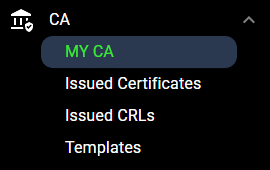
First we’ll create the Root and the Sub CAs. We’ll keep things simple by creating all the CAs on a single instance of Khatim PKI Server although ideally CAs should be on segregated to have maximum security. From My CA > Create CA, we’ll setup our Root and Sub CAs.

This open a CA form. We’ll fill in the form and create the CA. We’ll setup the keys to be in an HSM & select a CA template.
Note that the Khatim PKI Server’s certificate template section allow PKI Admins to setup certificate parameters like validity periods, policies (Qualified statement, CA/B forum extension) & RFC 5280 based extensions.

Once created the PKI Tree view will show the generated Root CA.

Like in the Card View, each CA is shown as a card. Here the CA is shown in green color representing that it is a CA which is configured locally; has access to it’s private key as well. If not then the CA is shown in grey color meaning they are managed remotely which are normally Remote Root CAs or Remote Sub/Issuing CAs.
PKI Admins can see basic details just like in the card view. There is an exclamation shown guiding that the CRL configurations are missing, this can be setup to remove the warning.
Now let’s issue Sub CAs i.e. Commercial TLS CA.

Let’s add one more CA.

Each CA is neatly stacked to visually represent the PKI hierarchy, starting from the Root CA at the top and progressing downward through Subordinate CAs. This structured layout makes it easy for PKI Admins to understand the trust chain at a glance. Clicking the card opens the CA details screen provide complete information about the CA. On the card, there are also buttons to give one click access to:
- CA issued certs, crls
- Ability rekey the CA
- Download the CA certificate
- Download CSR or import the issued cert (if CA was certified by an external CA)
Setting up Three Tier PKI
Let’s build another PKI hierarchy for a three tier architecture.

Adding more CAs.

The view seems complex but PKI Admins can always zoom and pan to see a better view of the respective PKI Tree area.
More Options
Let’s explore operations like CA revocation and renewal. If a CA is revoked a RED exclamatiion icons is shown.

If we configure any of the CA to issue CRLs automatically and also configured it inside Certificate Provider engine for certificate issuance (over Restful calls) then the card will highlight those attributes accordingly (filled light green).

If we Rekey/Renew a CA, Khatim PKI Server will automatically detect the list of certificate provider policies where the being renewed CA was configured. This is handy as the old CA might not be used to issue new certificates rather only issue CRLs. PKI admin can select those certificate provider policies and the new CA will automatically be configured there.

Once complete, the rekeyed CA will be shown as disabled. Both the old and new CAs will share the same color marker for easy identification and pairing.

For the newly issued CA, the PKI admin can refer to the CA History tab to view information about the old CA that was renewed.

Three Tier (Separate Organization/Systems)
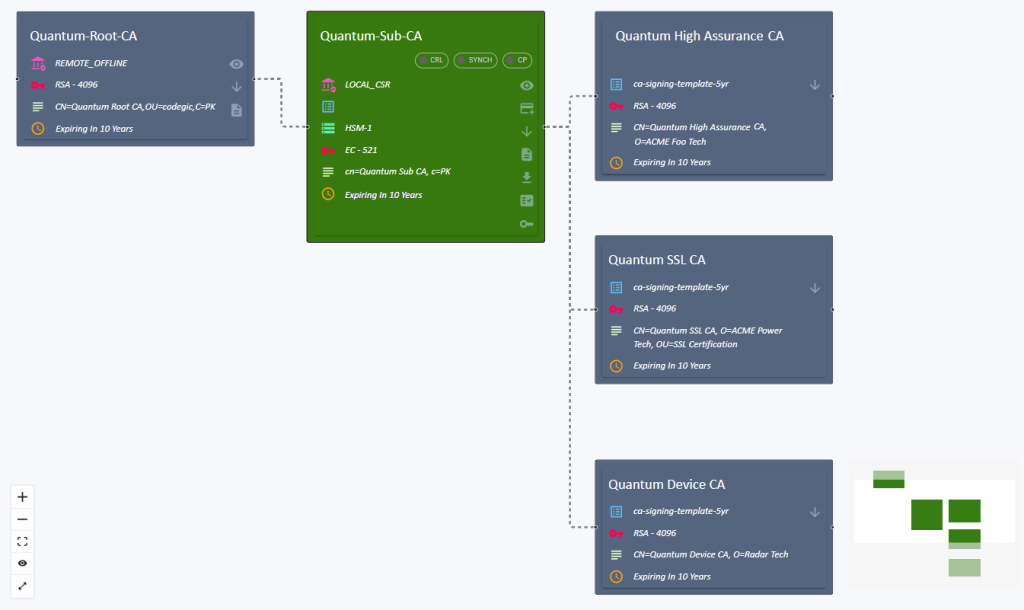
Finally, what if your Root CA, Sub CA, and Issuing CAs are deployed across different organizations or systems? In this case, the PKI Admin should first add the Root CA to the Khatim PKI Server and mark it as a Remote Offline CA. Once added, it will appear in grey to indicate its offline status.

Now let’s create a new CA (Quantum Sub CA) using a CSR which the Quantum Root CA (running on another org/system) will issue.

Once done the Quantum Sub CA is shown in green filled box, representing that it is local i.e. has access to its private keys.
To issue Issuing CAs via CSR by Quantum Sub CA, PKI Admin can open the list of issued certs and click Certify Manually (PKCS#10) option to select the Issuing CA’s CSR/PKCS#10.
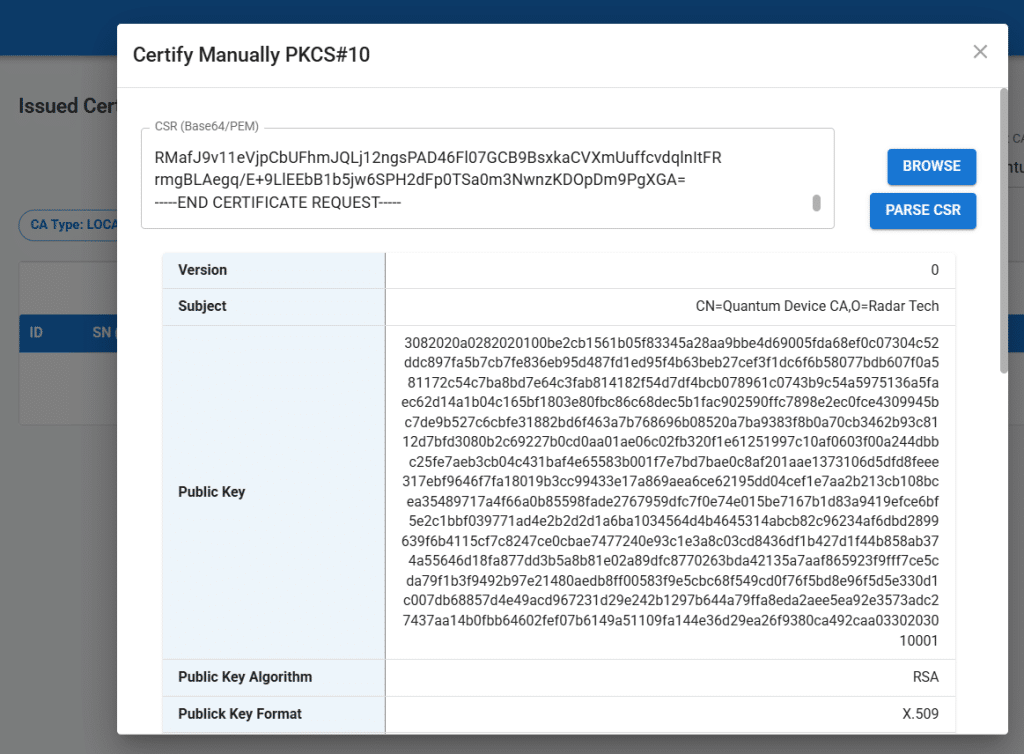
Here PKI Admins can easily paste the CSR and issue the CA certificate. Here is the PKI Tree view while issuing multiple CAs.
Viewer Management
Other than this you can use the zoom in/out controls, fit to screen, full screen & show/hide the mini map options to further improve the visibilty of the PKI.
Final Takeaway: Operationalizing PKI Architecture
Designing a secure and scalable PKI is a high-stakes process — every choice, from tiering to key custody, influences risk, compliance, and trust for years to come.
This is where Khatim PKI Server’s Designer stands out: it doesn’t replace PKI design — it operationalizes it.
By rendering your architecture as a real, deployable model:
✅ You ensure fidelity between intent and implementation
✅ You remove the drift between documentation and deployment
✅ You empower teams to visualize, validate, and execute with clarity
Whether you’re working on a basic internal CA or a globally distributed three-tier trust fabric, Khatim helps PKI admins from design on paper to live infrastructure — faster, cleaner, and with audit-grade precision.
WANT TO SEE PKI IN ACTION?
Test drive Khatim PKI Server and explore its powerful features.